
Check Your Mapping is primarily used to cross-verify mappings between different providers. It helps you compare how properties are mapped from one provider to others, ensuring mapping accuracy and identifying any mismatches.
Step 1: Log in to your client portal
Access your client portal using your login credentials.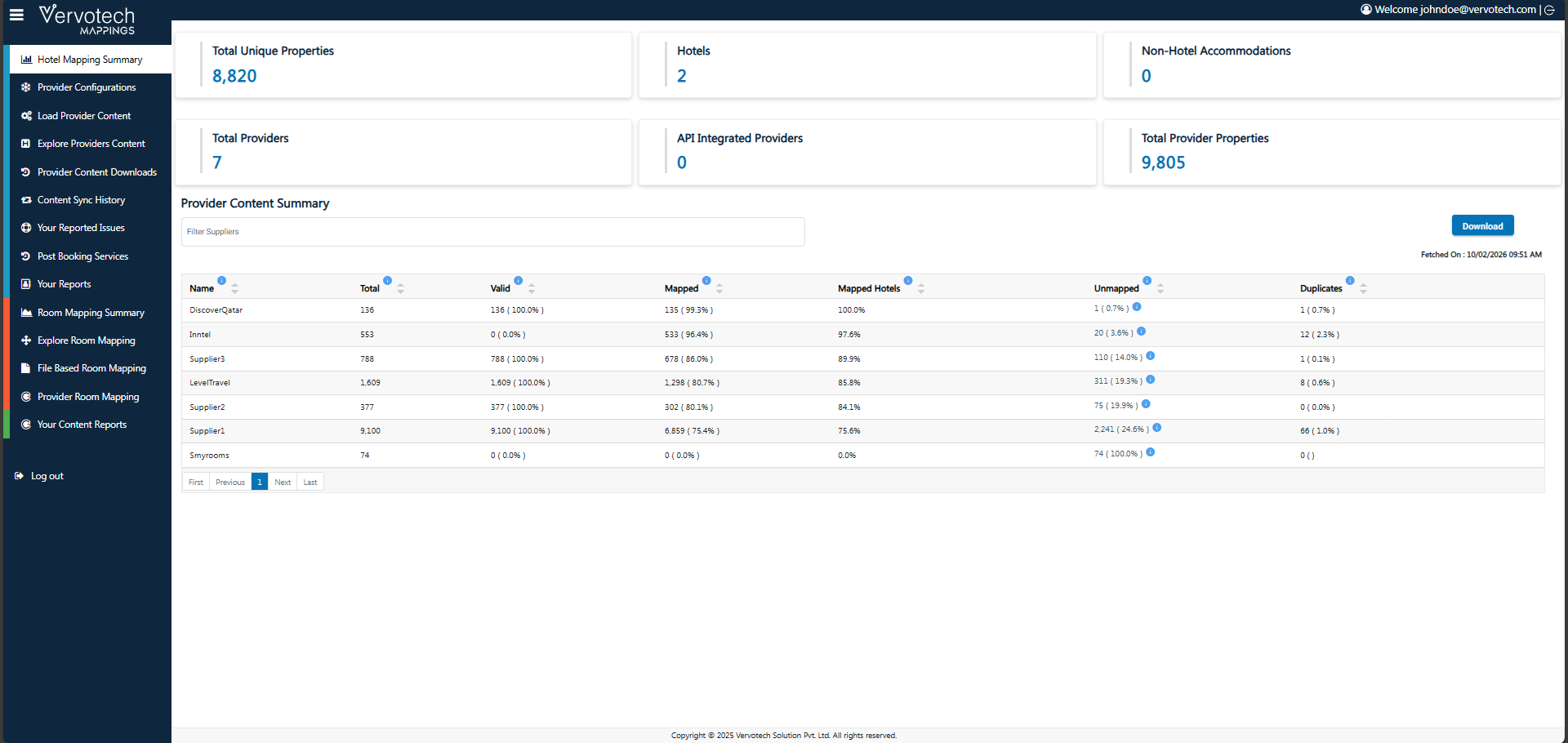
Step 2: Go to Content Reports
From the dashboard, go to the Content Reports section.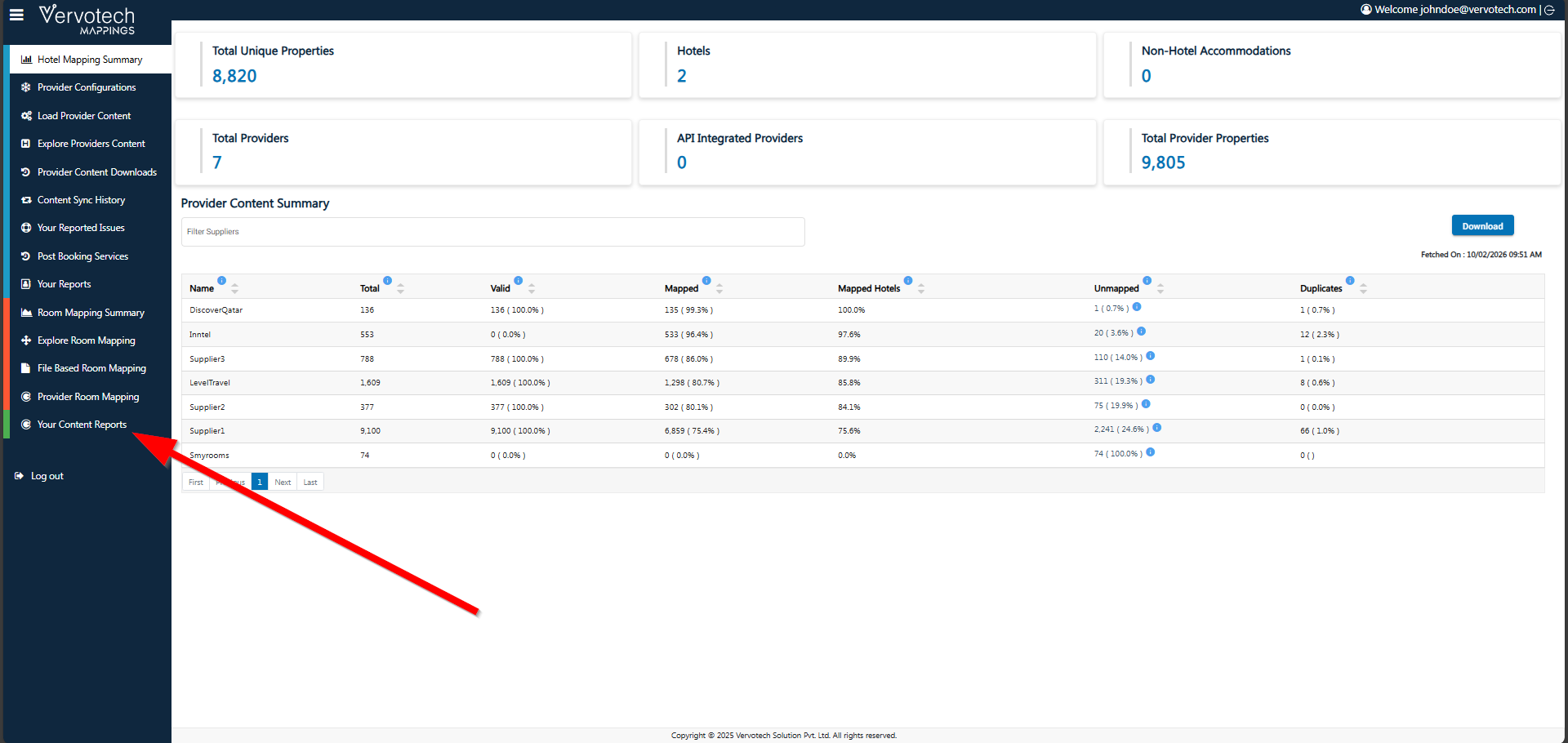
Step 3: Access the Mapping Tool
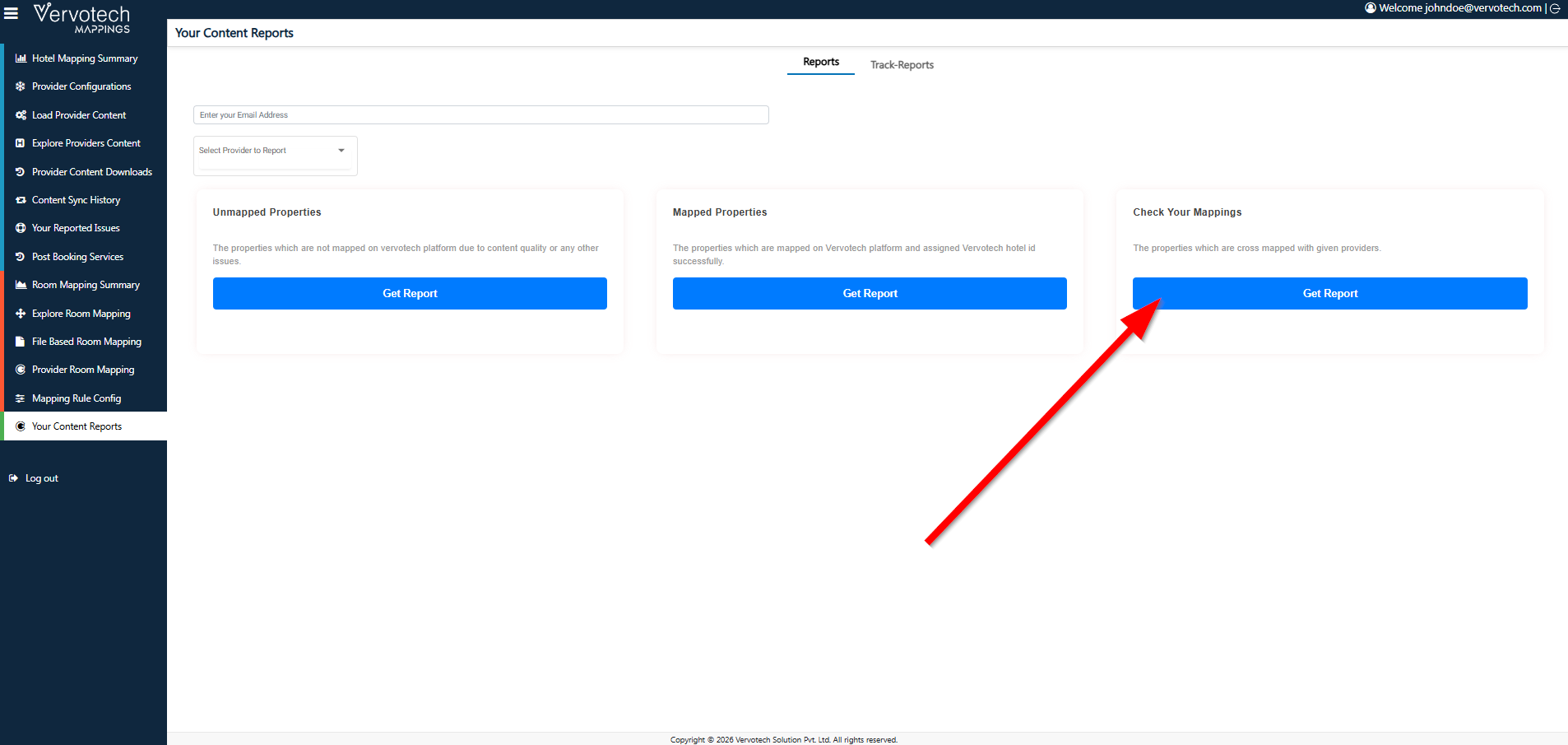
Under “Check Your Mappings”, click on “Get Report”.
Step 4: Fill in the Required Parameters
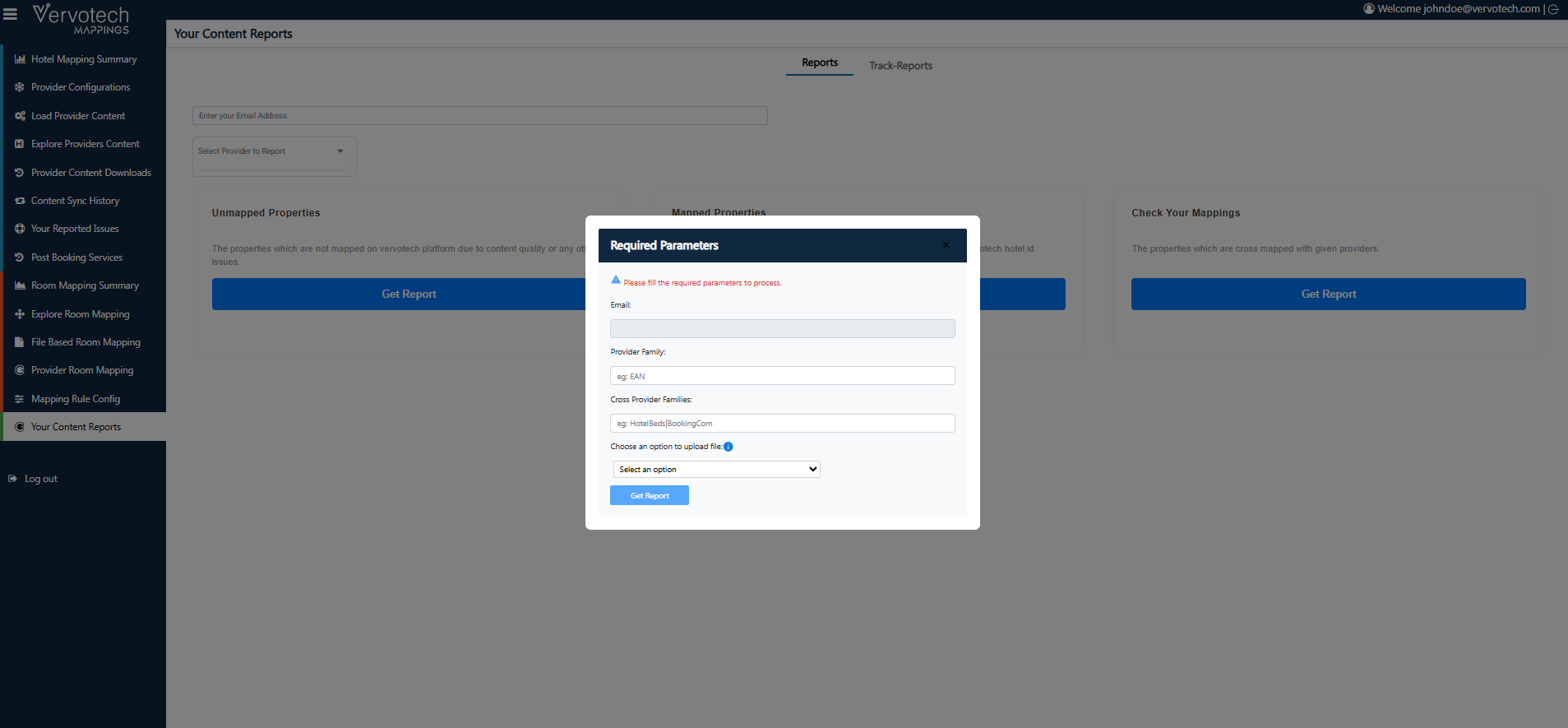
Enter the following parameters carefully to perform cross-verification:
Email: Enter the email address where you would like to receive the report.
Provider Family: Specify the provider family.
Example:EANCross Provider Families: Enter one or more provider families separated by a pipe (
|).
Example:HotelBeds|BookingComChoose an option to upload file: Upload the required input file (if applicable).
Select an option: Choose the appropriate option based on your requirement.
a. Provide File Path: If you select this option, ensure your file is already uploaded to your FTP server. Enter the exact file path in the required field. The file must be in .txt format.
b. Upload File: If you select this option, you can upload a file directly from your local system. Choose the file from your device and upload it. Only .txt files are supported.
Note: If you want to get the mapping report only against one provider, you can leave the Cross Provider Families field blank.
Step 5: Generate the Report
After filling in all the required details, click on “Get Report”.
If you have any queries, feel free to reach out on our Customer Success Portal.