Step 1: Log in to your client portal
Log in to the client portal using your registered credentials.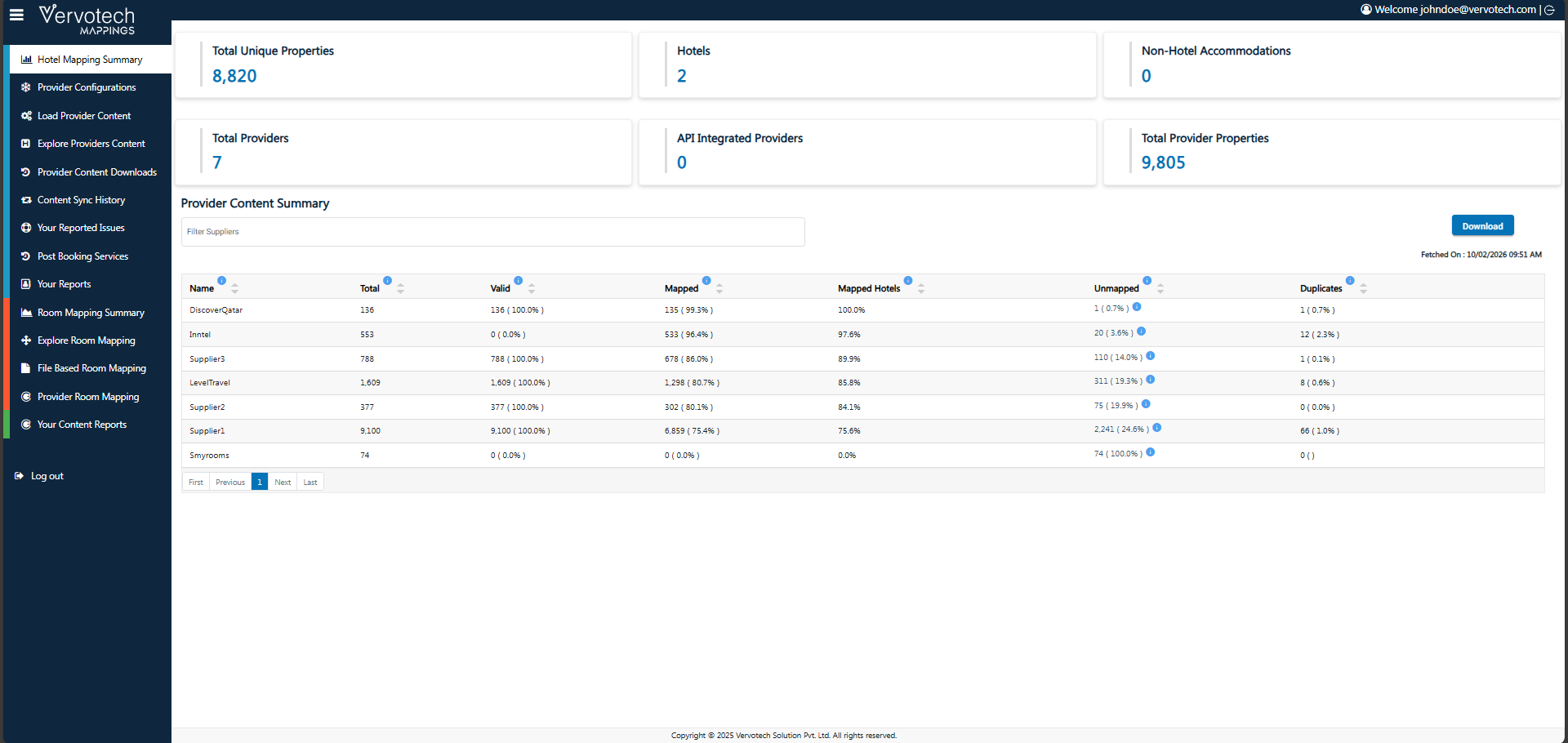
Step 2: Go to Content Reports
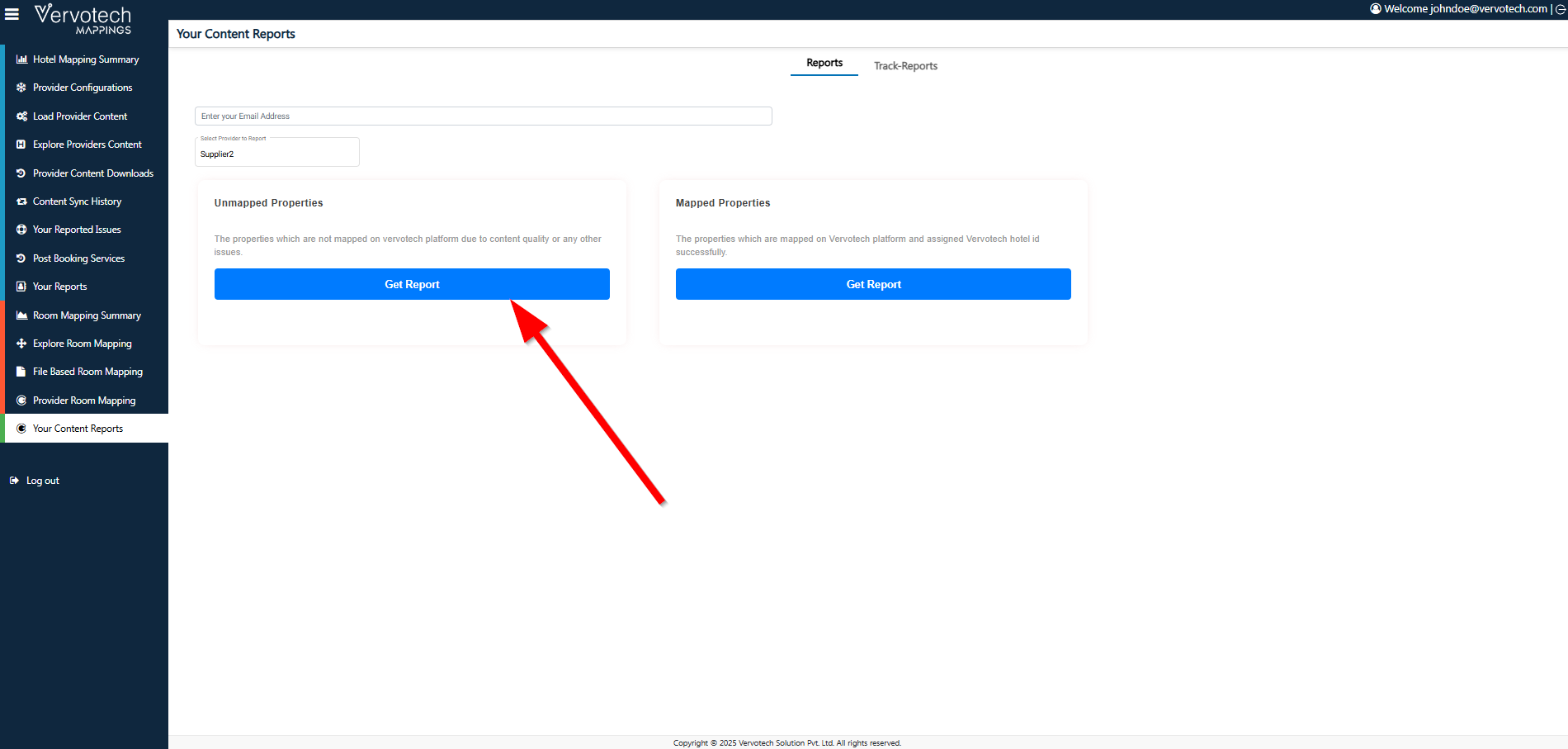
From the main menu, navigate to Your Content Reports.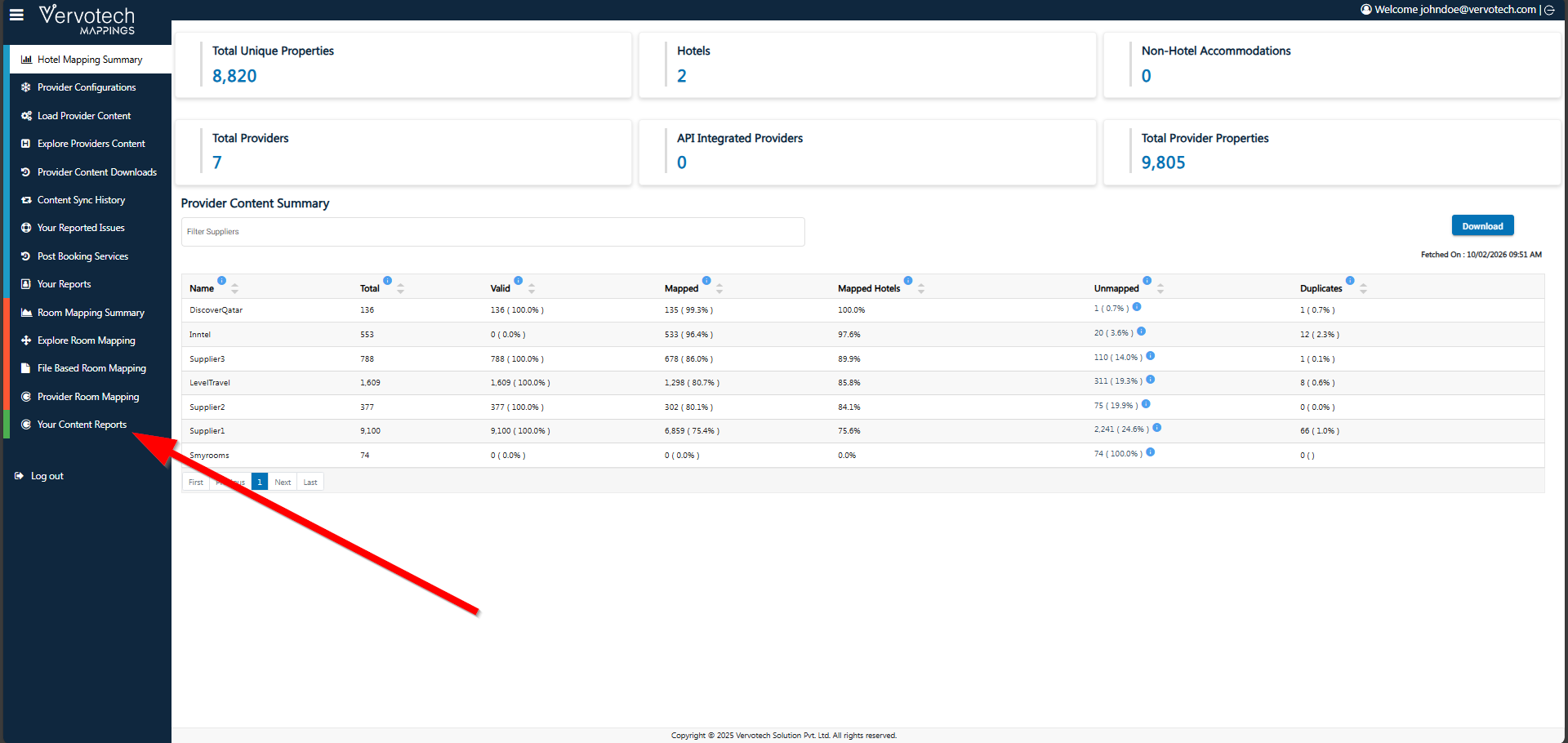
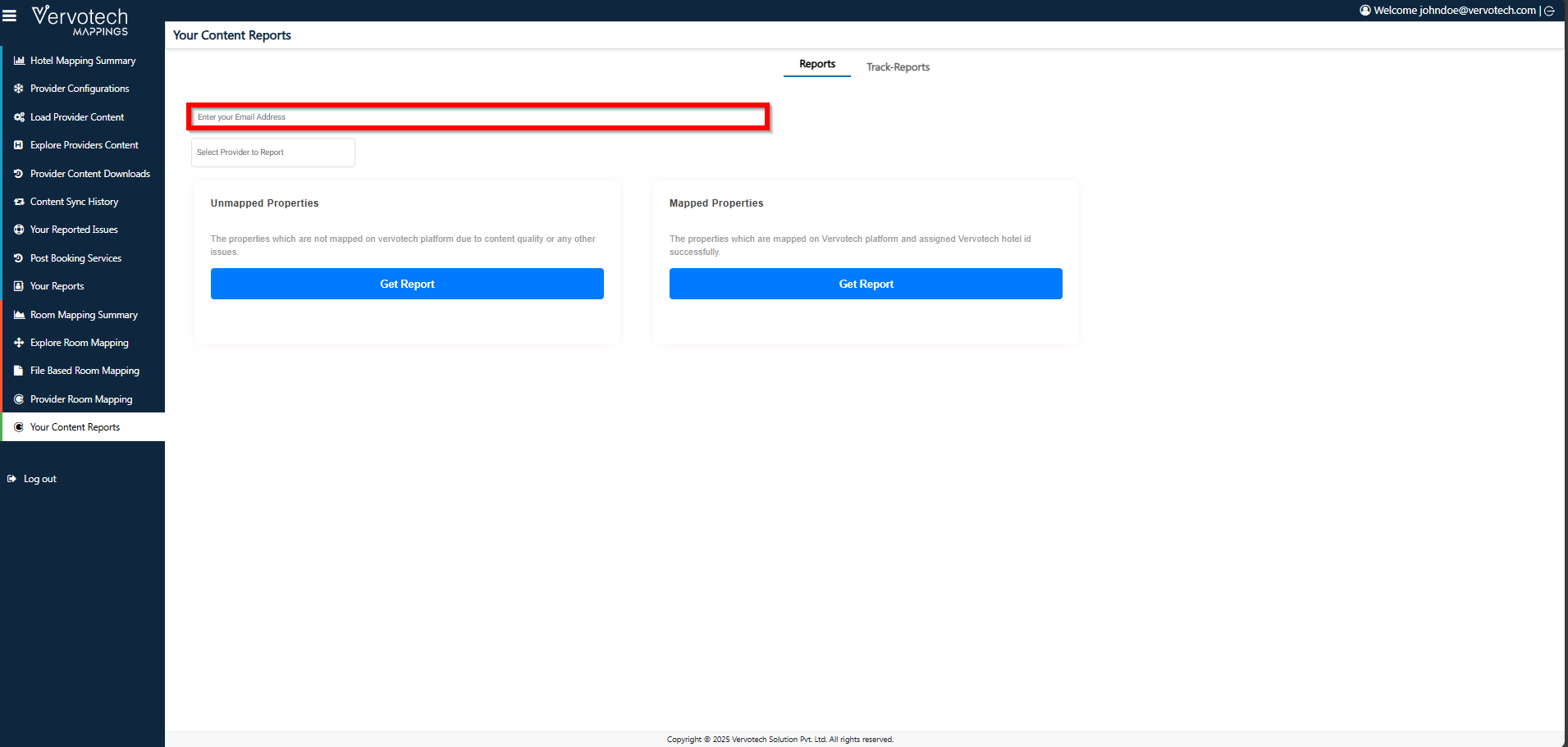
Step 3: Enter notification email address
In the email field, enter the email address on which you want to receive a notification once the report generation process is completed.
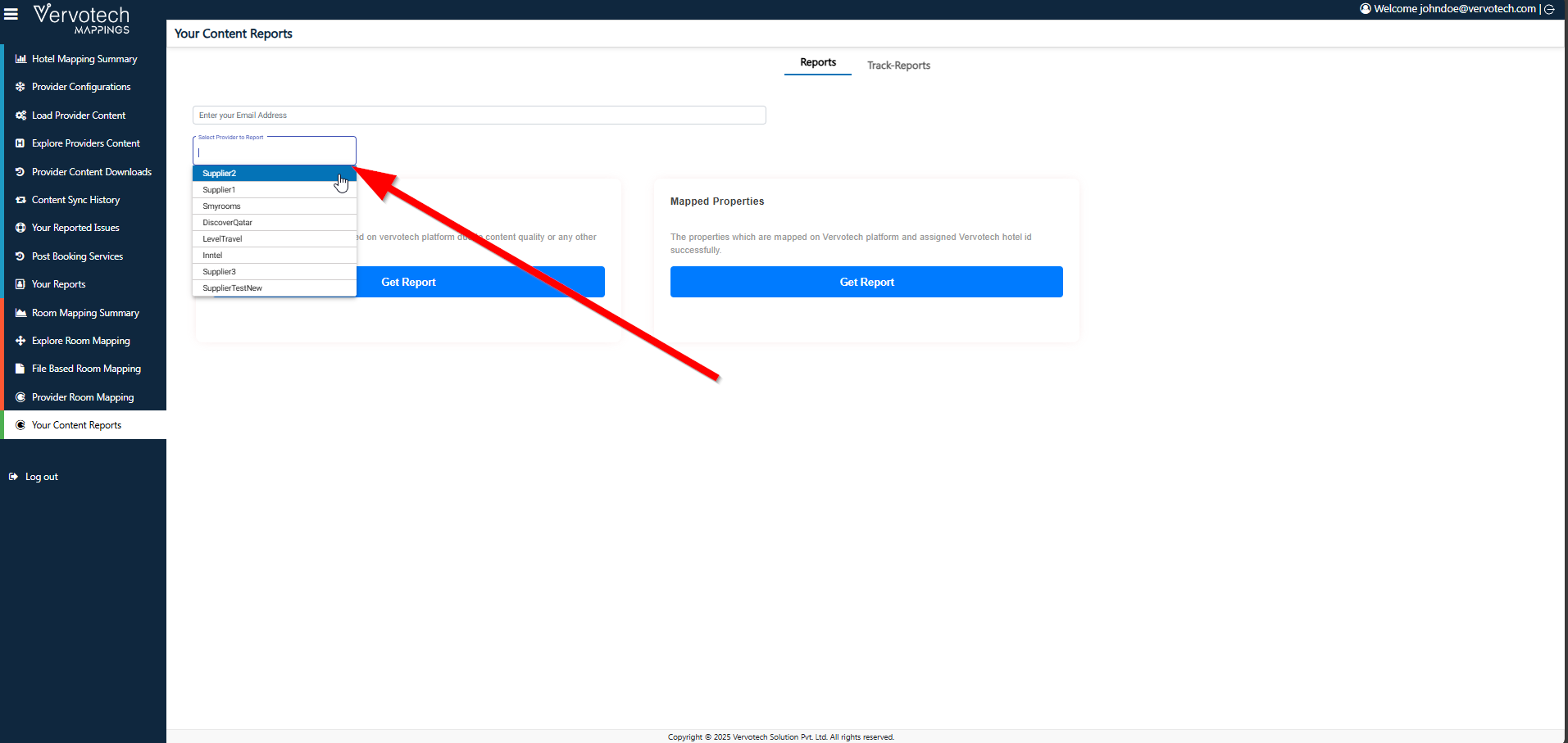
Step 4: Select provider(s)
Select the provider for which you want to generate the report.
Step 5: Select report type
Choose the report type based on your requirement:
Mapped
Unmapped
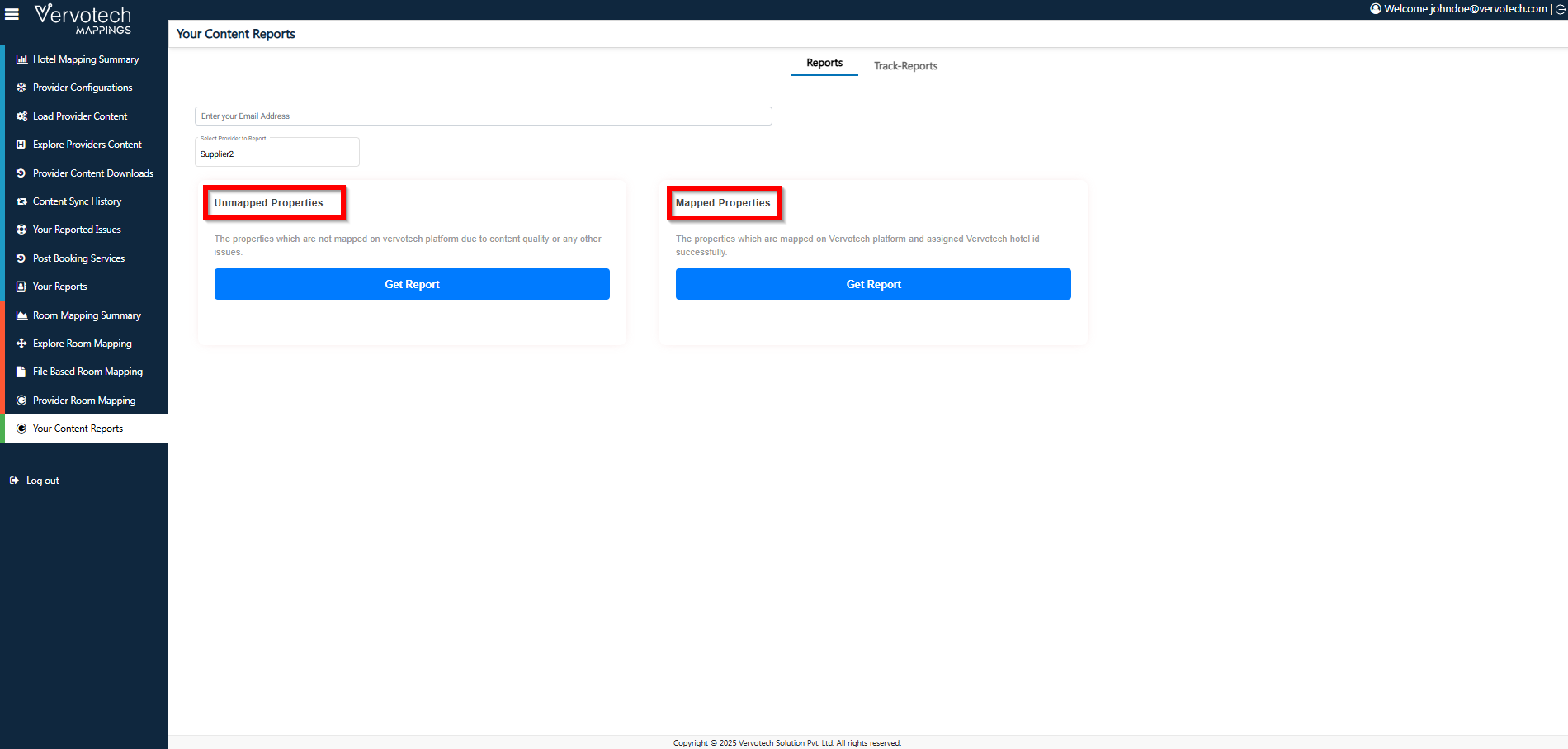
Step 6: Generate the report
Click on Get Report.